Creating & Managing Price Lists
Price lists define the items, rates, and materials you offer. When you create quotes or jobs, items are pulled from these price lists.
Approx. 8 minutesBefore You Start
- You need permission to create and edit price lists (catalogues).
- Think about how you want to structure your pricing — you can create multiple price lists for different customer types or contracts.
Steps
-
Navigate to Price Lists
From the sidebar, click Catalogue to open the price lists and templates page. The Price Lists tab shows all your existing price lists.
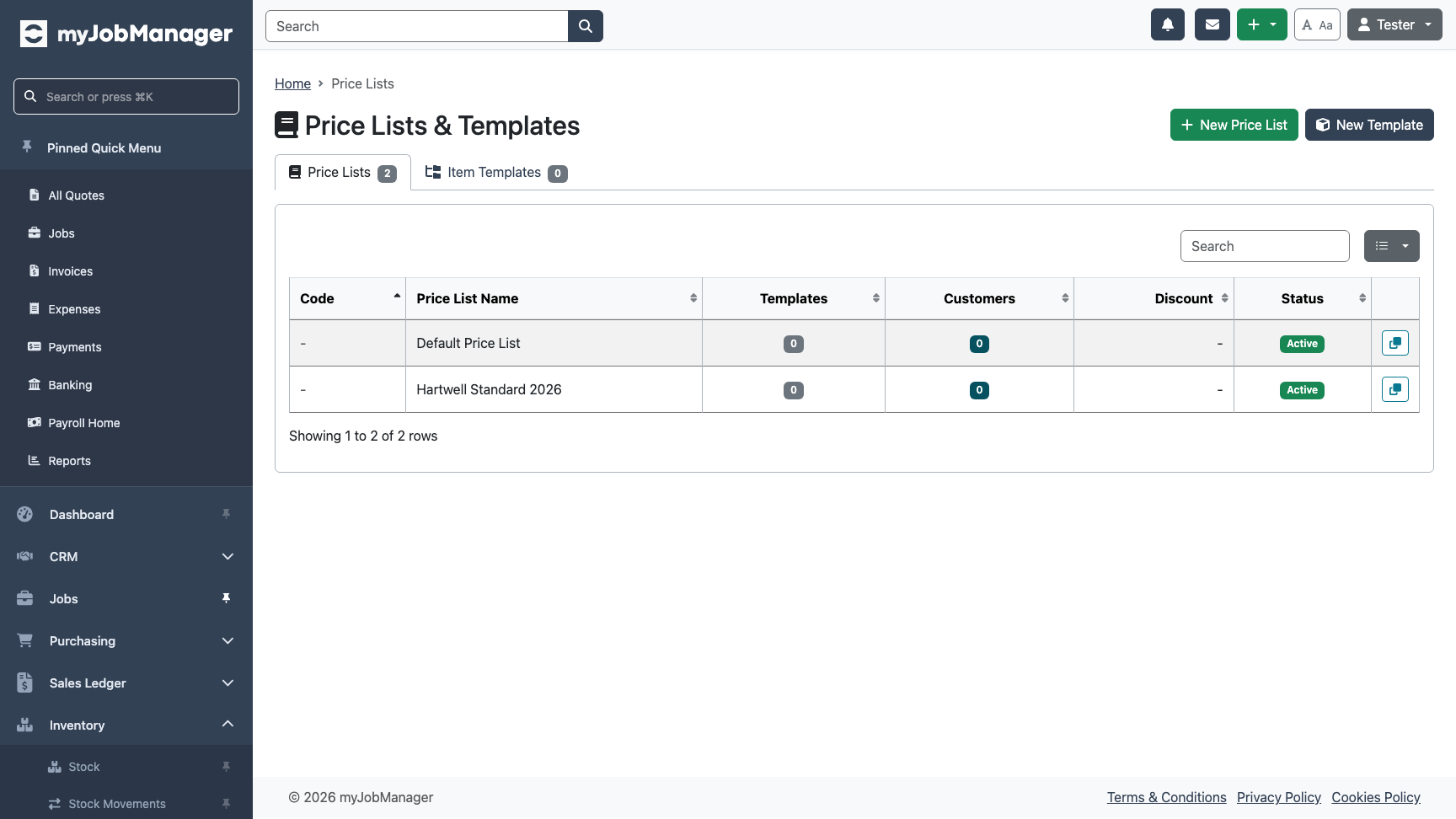 1 Click "New Price List" to create one.
 -
Open the New Price List Form
Click "New Price List" to open the creation form. You'll need a name, an optional code prefix, and a description.
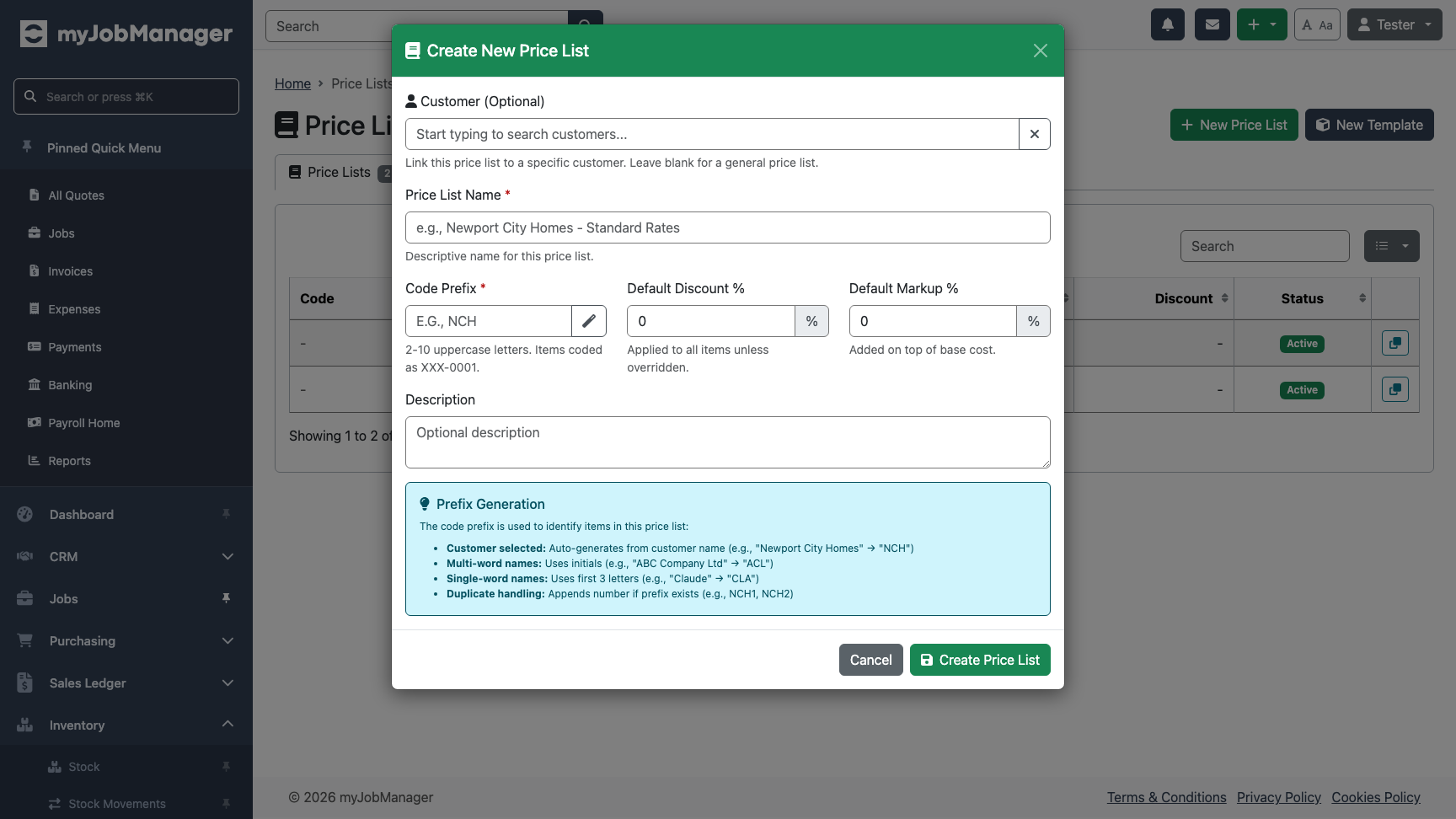 1 Name — give it a descriptive name (e.g. "Standard Rates 2026").2 Code prefix — used as a prefix for item codes within this list.
 -
Fill In the Details
Add a description and optionally set a default discount percentage. The discount applies to all items unless overridden individually.
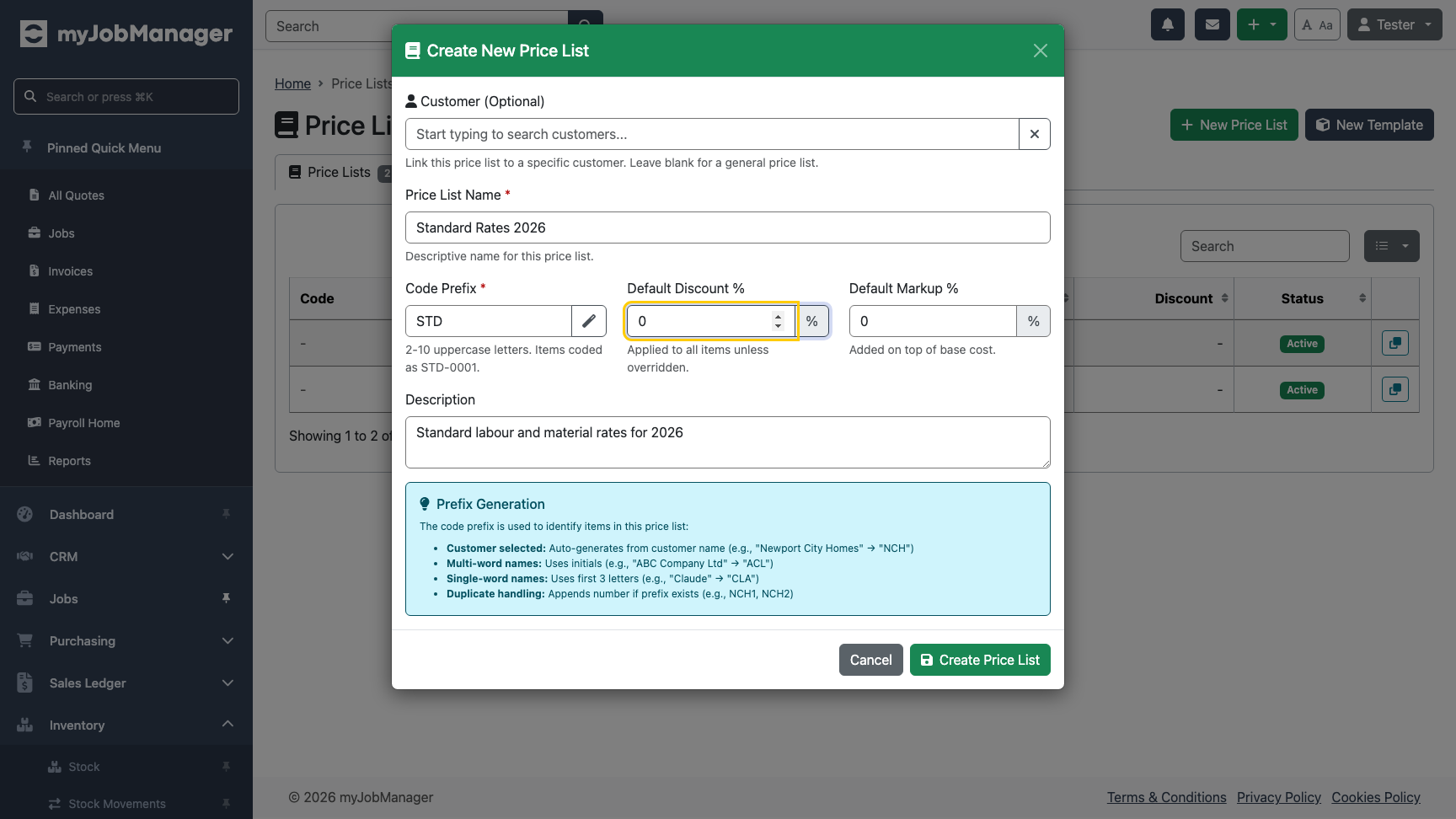 1 Description helps identify this price list later.2 Click Save to create the price list.
 -
Your Price List Appears in the Table
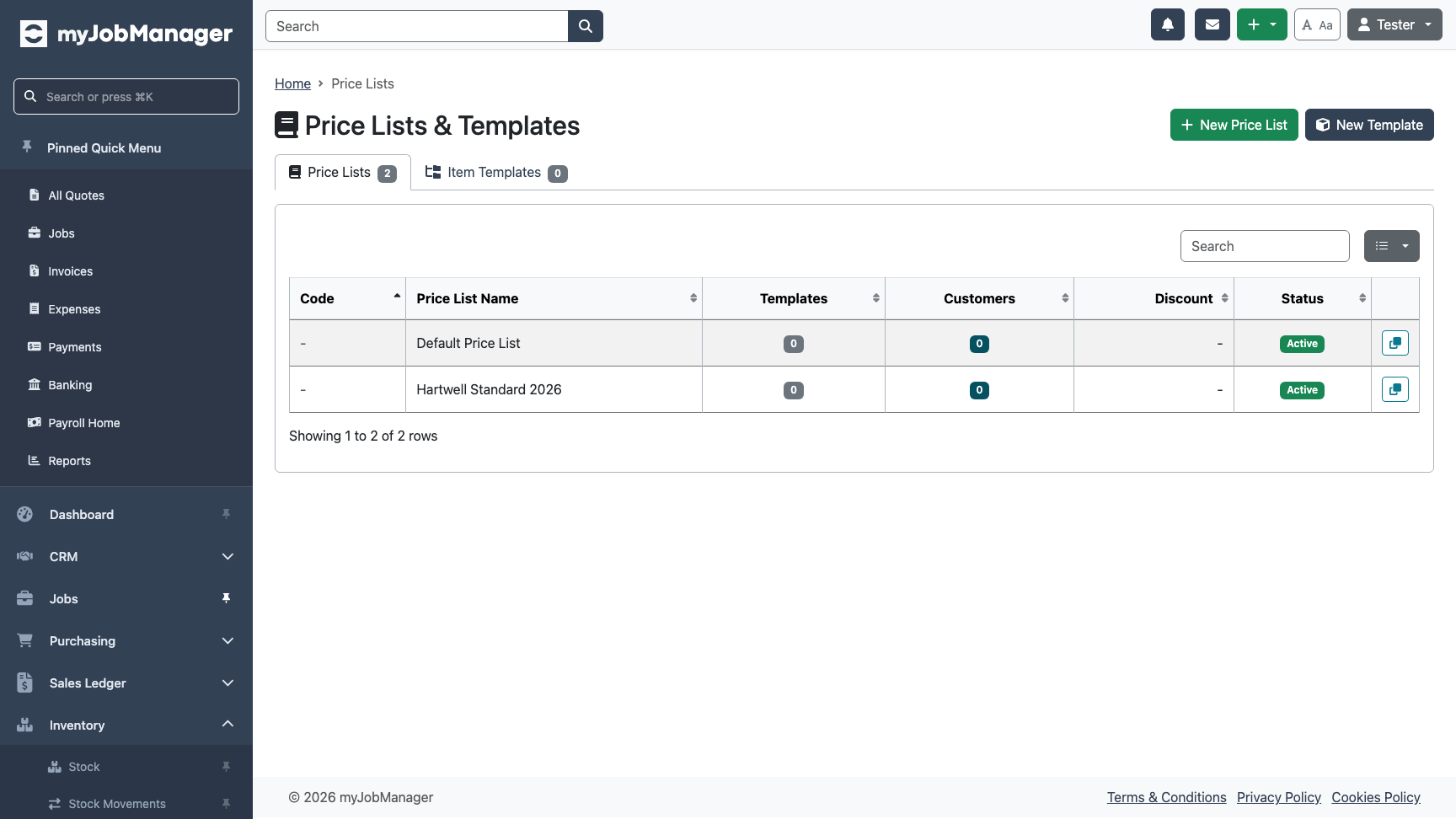
After saving, the new price list appears in the table. Click any row to open its detail page where you can add items.
-
View the Price List Details
The detail page shows the price list header information. Use the tabs to manage items, view upload history, or edit settings.
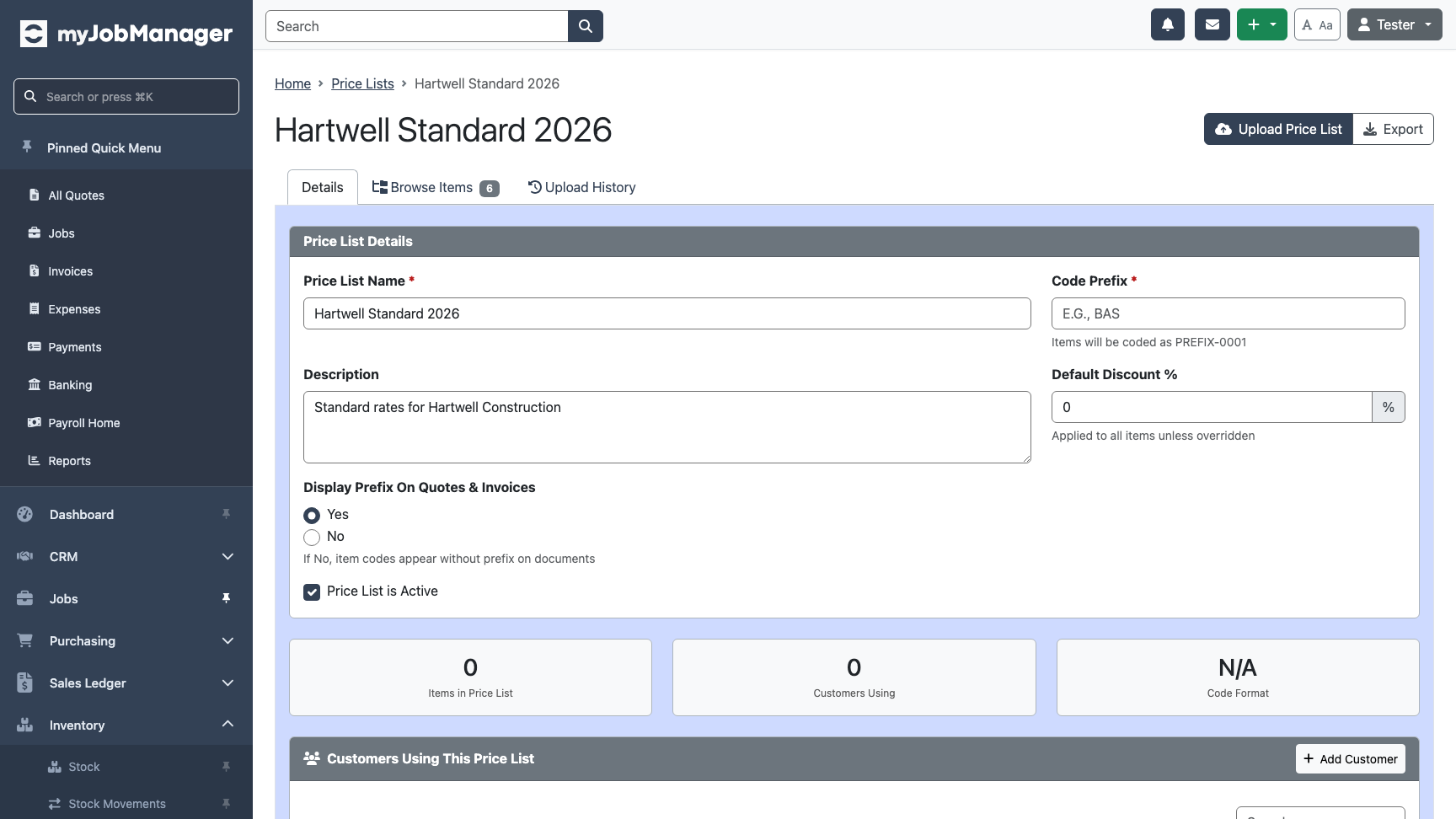 1 Details — edit the name, description, and discount.2 Browse Items — view and manage items in this price list.
 -
Browse Items by Category
Click Browse Items to see items organised in a category tree. Click a category on the left to see its items on the right.
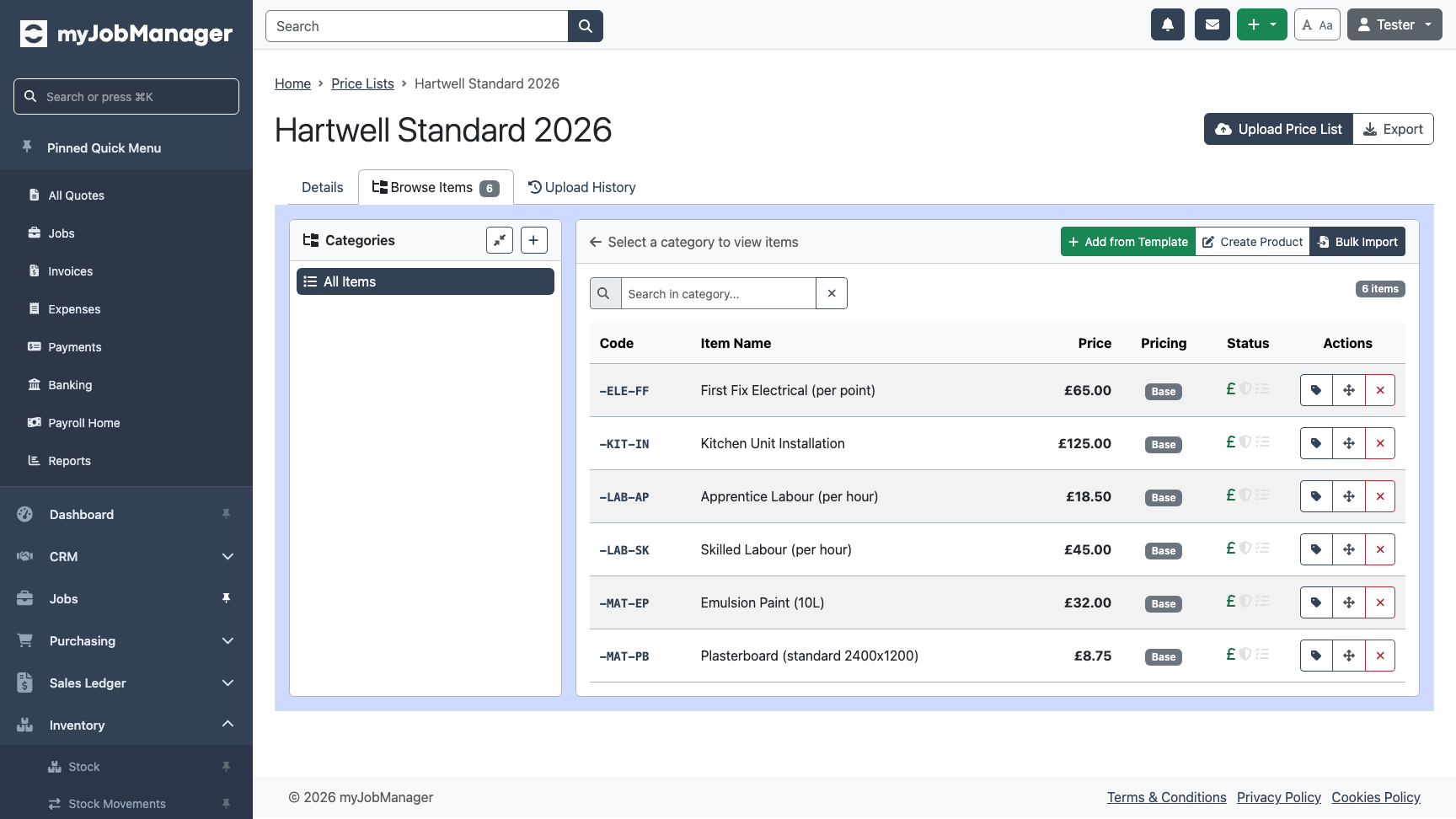 1 Category tree — organise items into logical groups.Tip You can also upload items in bulk from a CSV file using the Upload button on the price list page.
 -
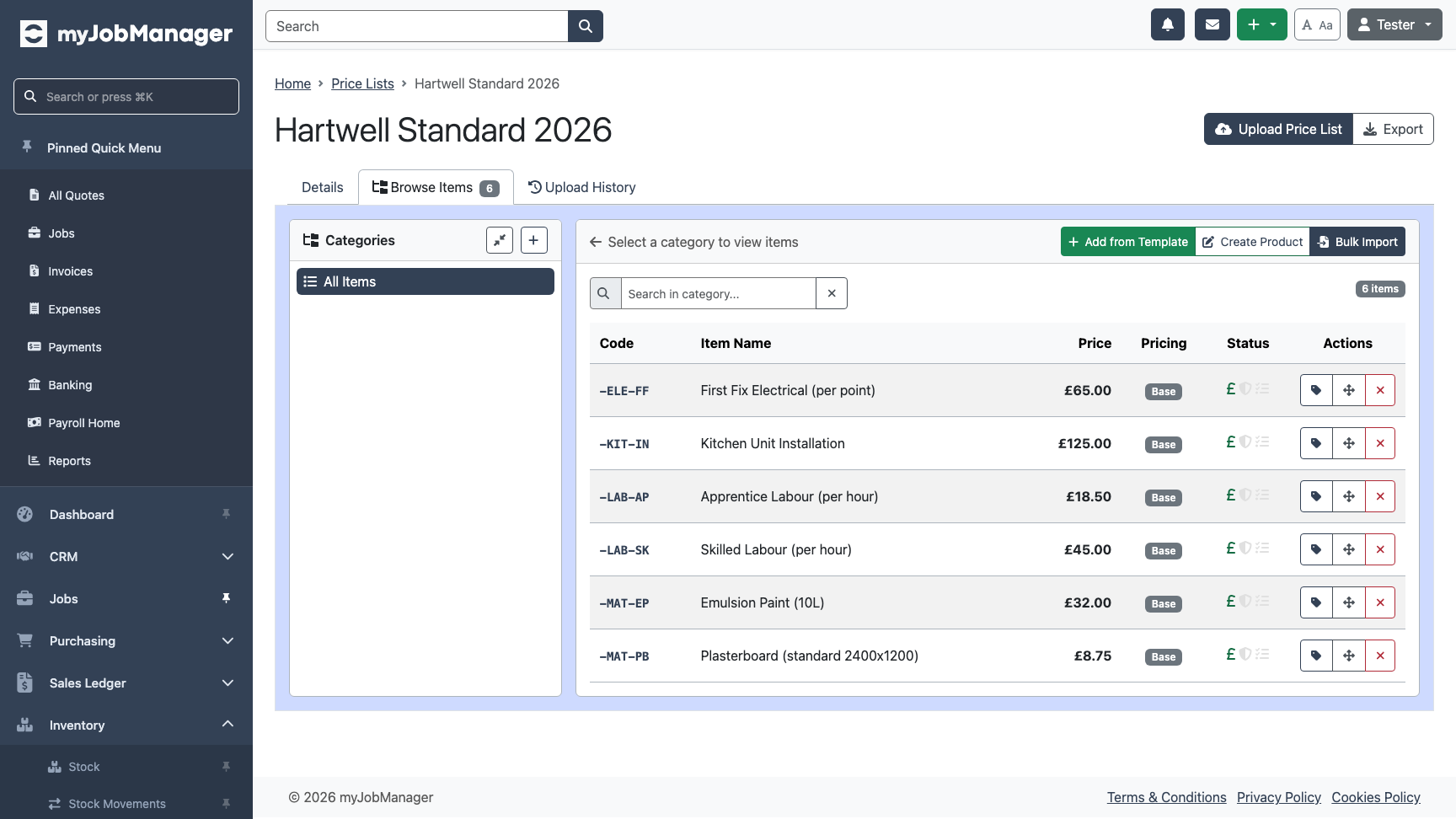
View Items in the Table
Each item shows its code, name, unit price, and unit of measure. Click an item to edit its details, add tasks, materials, or view costing.
-
Assign Customers to the Price List
On the Details tab, you can assign customers to this price list. When creating quotes for that customer, their allocated price list items are available for quick selection.
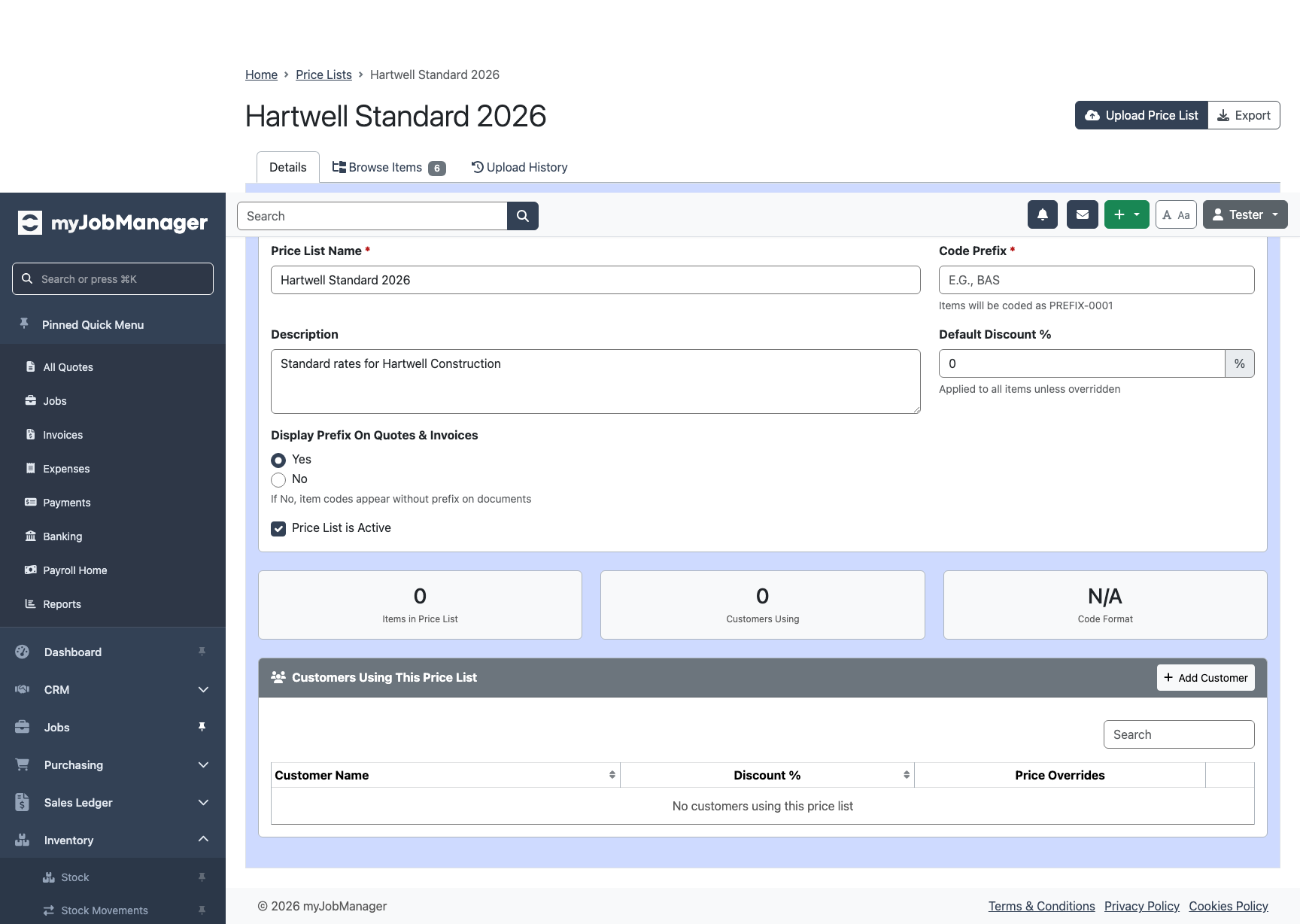 Tip A customer can be assigned to multiple price lists. The most recently created list takes priority when adding items to quotes.