Converting a Quote to a Job
When a customer accepts your quote, convert it into a job with one click. All items, quantities, and prices carry over automatically.
Approx. 5 minutesBefore You Start
- You need a finalised quote that has been sent to the customer.
- The quote must be marked as Accepted before you can create a job from it.
- You need permission to create jobs.
Steps
-
View the Sent Quote
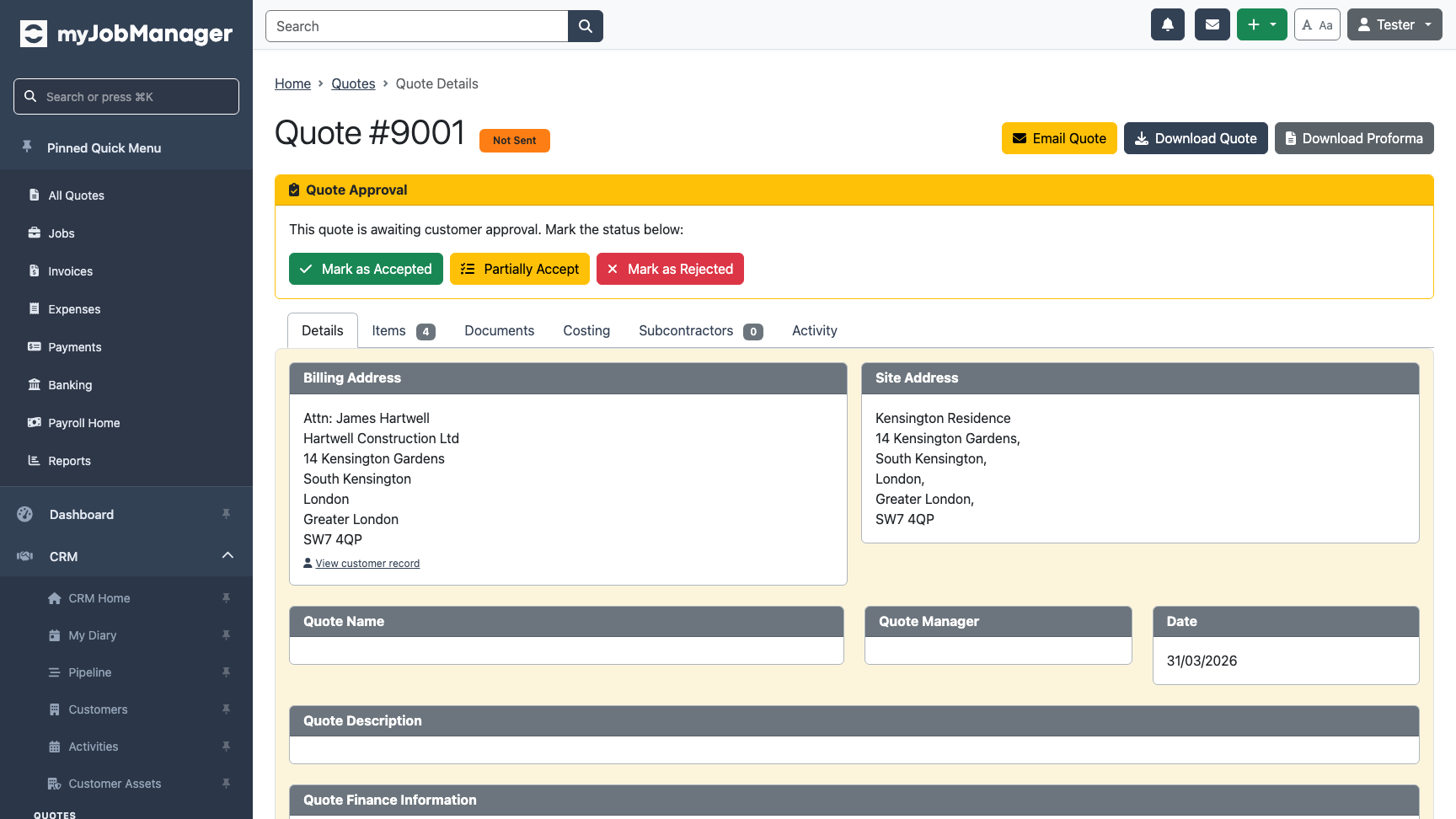
Open a quote that has been sent to the customer. The approval card at the top shows the quote is awaiting a response.
-
Mark the Quote as Accepted
When the customer confirms they want to go ahead, click "Accepted". If they decline, click "Rejected" instead.
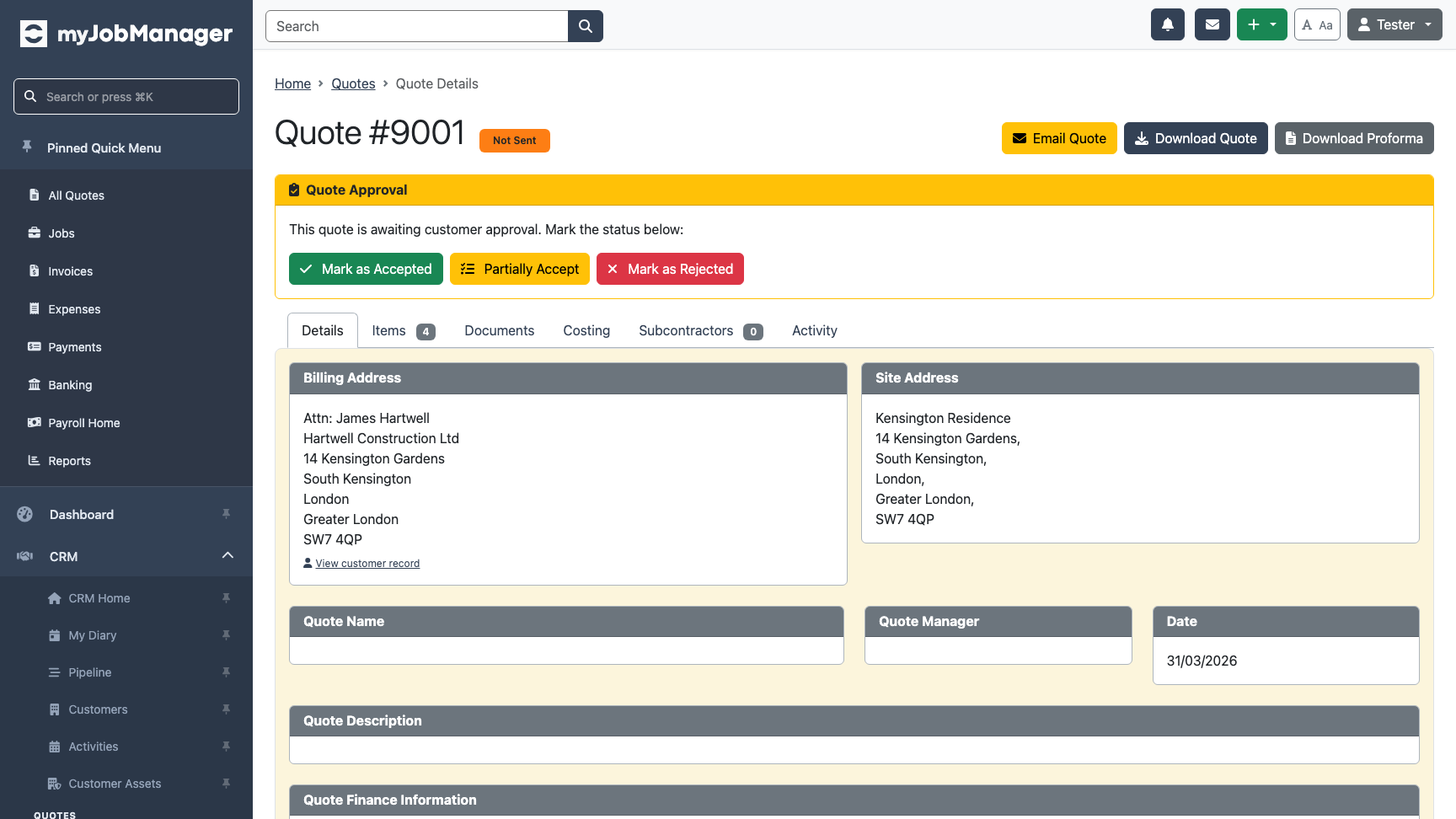 1 Click "Accepted" when the customer confirms.2 Click "Rejected" if the customer declines.Tip If a quote is rejected, you can create a requote (new version) with adjusted pricing rather than starting from scratch.
 -
Create Job Button Appears
Once the quote is accepted, a "Create Job" button appears. This lets you convert the quote into a live job.
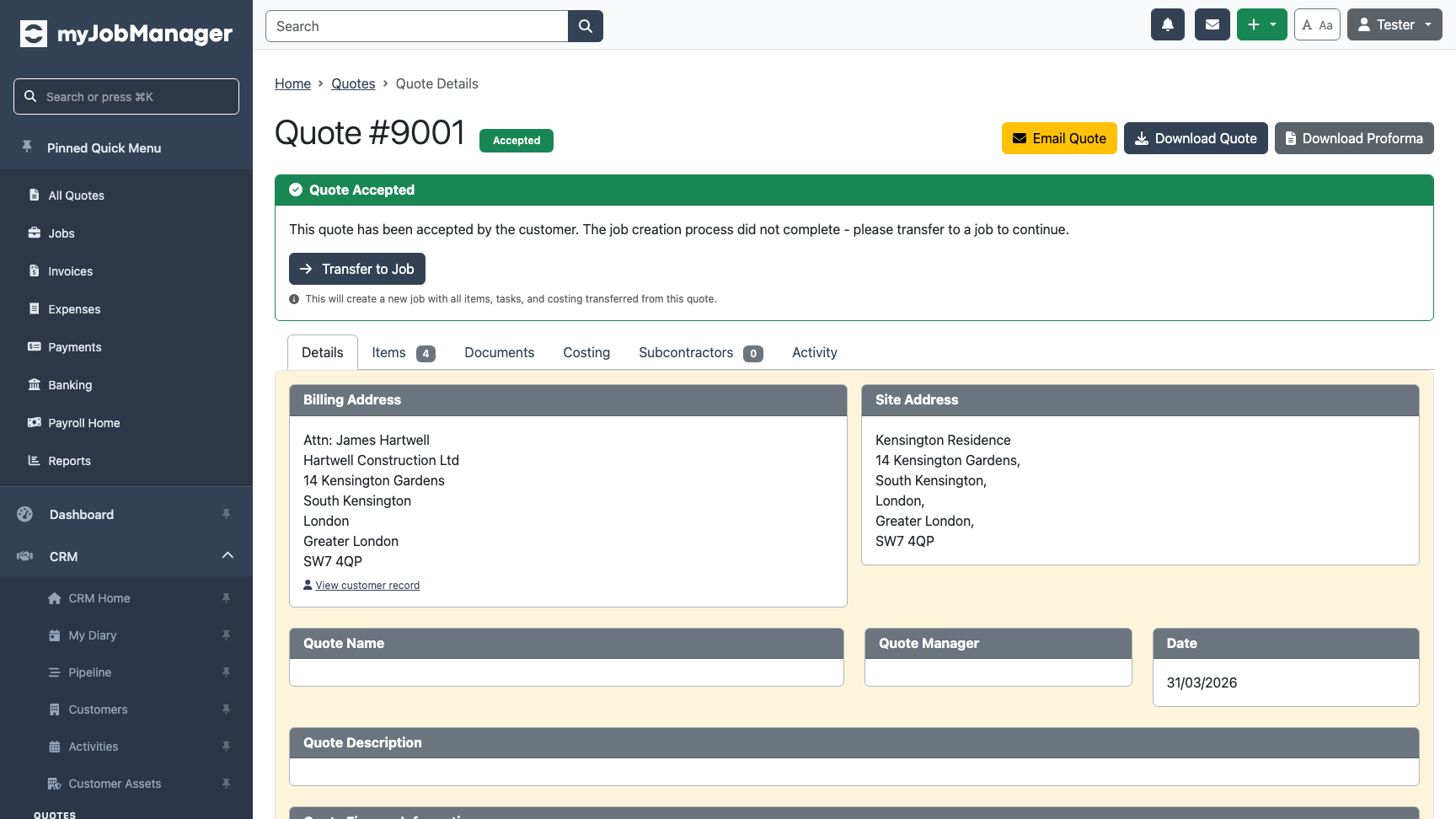 1 Click "Create Job" to convert this quote into a job.
 -
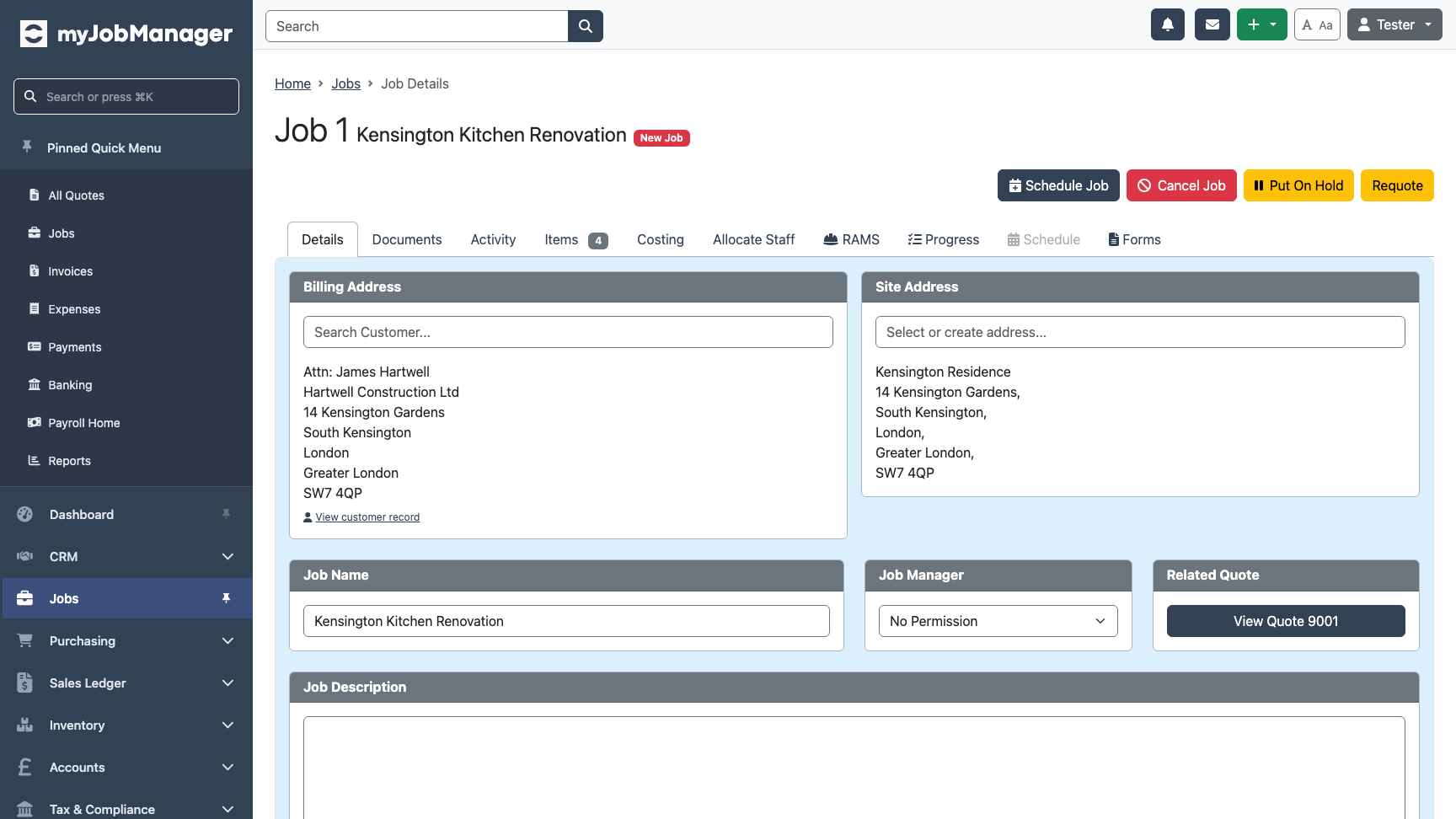
Job Created
The system creates a new job and takes you to the job detail page. All items, quantities, and prices from the quote are copied across automatically.
-
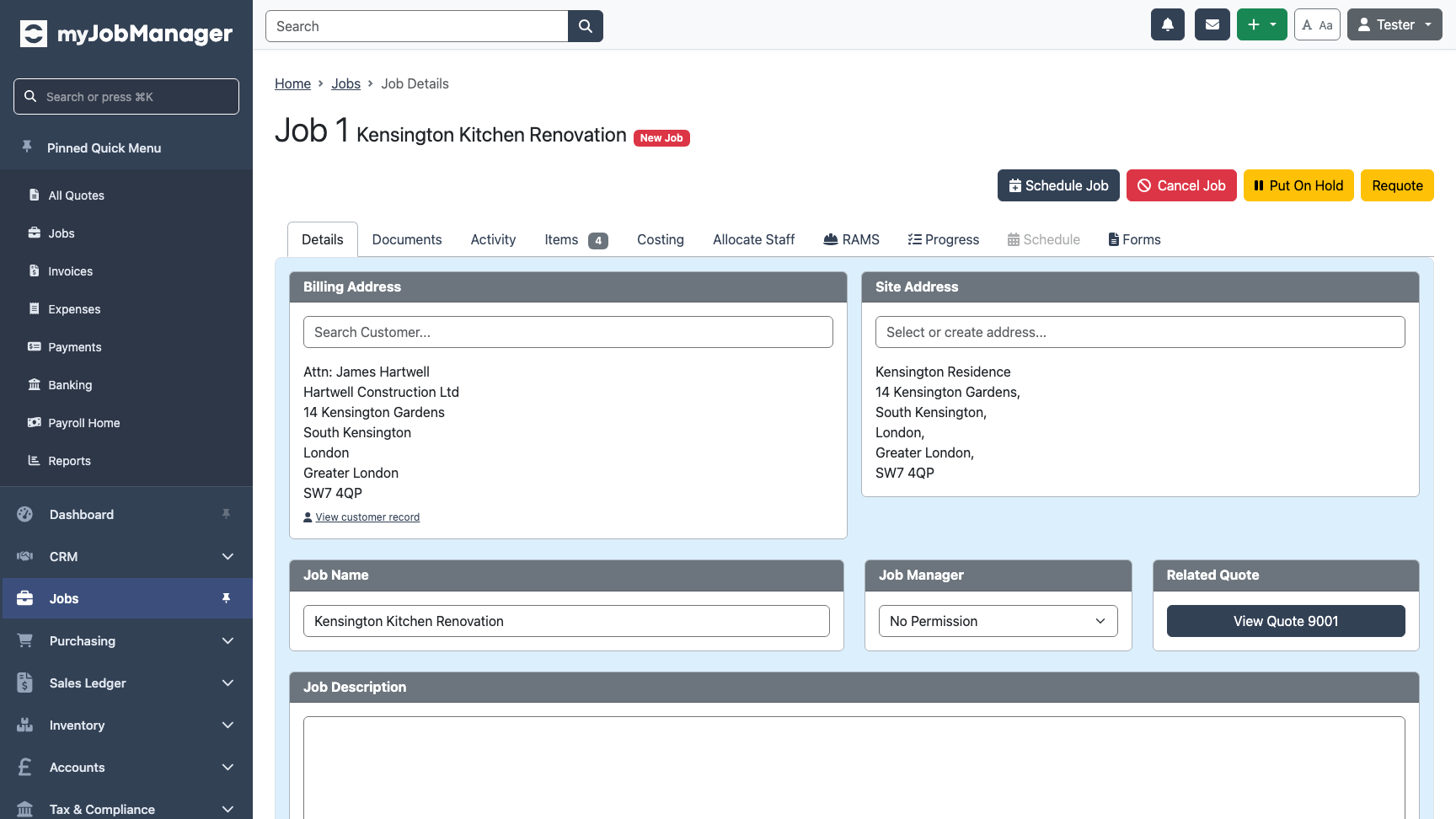
Review the Job Details
The job detail page shows the customer, site address, and all items carried over from the quote. The job is ready for scheduling and work to begin.
-
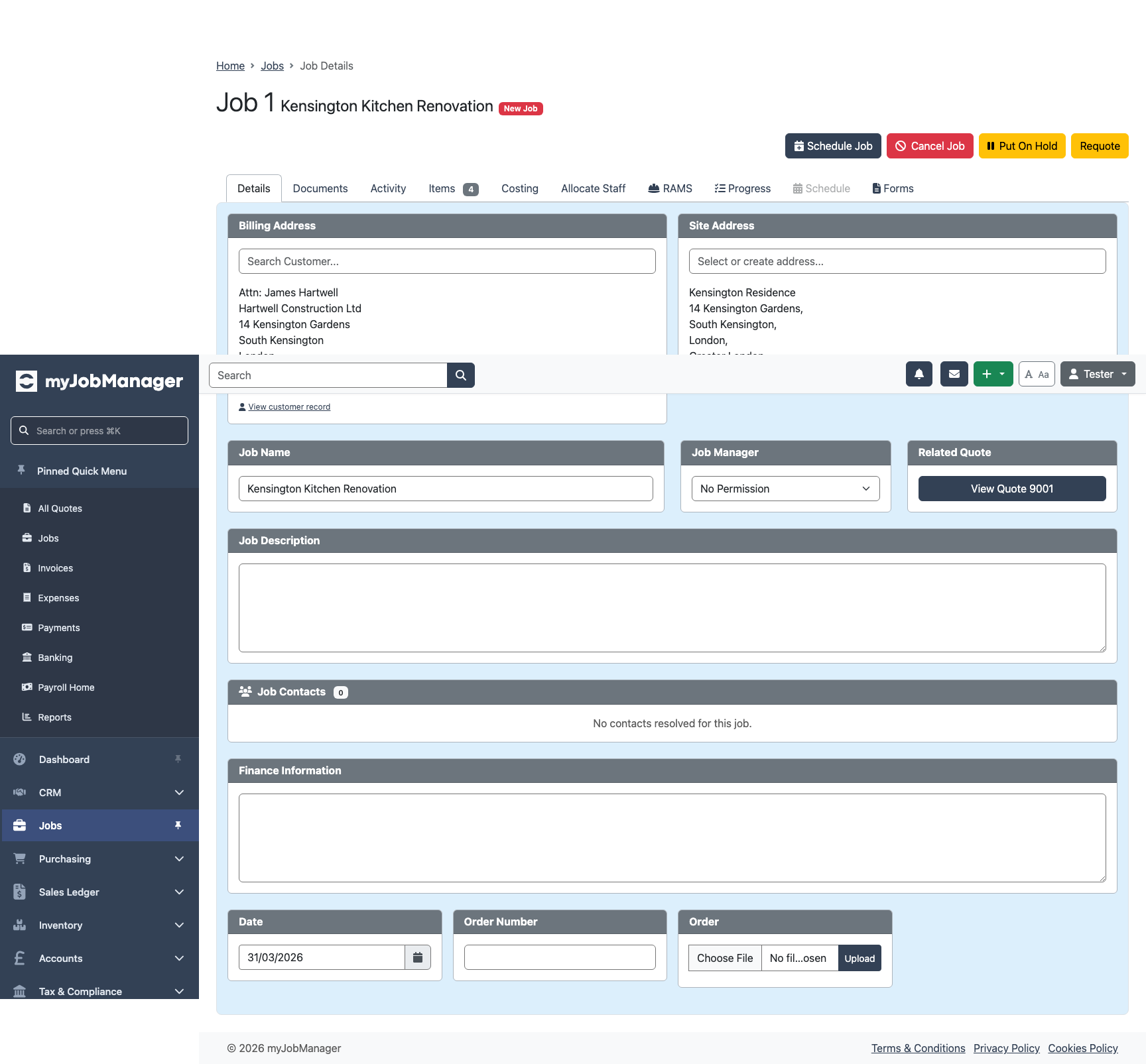
Verify Items Carried Over
Check the job items to confirm all line items match the original quote. Quantities, prices, and VAT rates are all copied across.
-
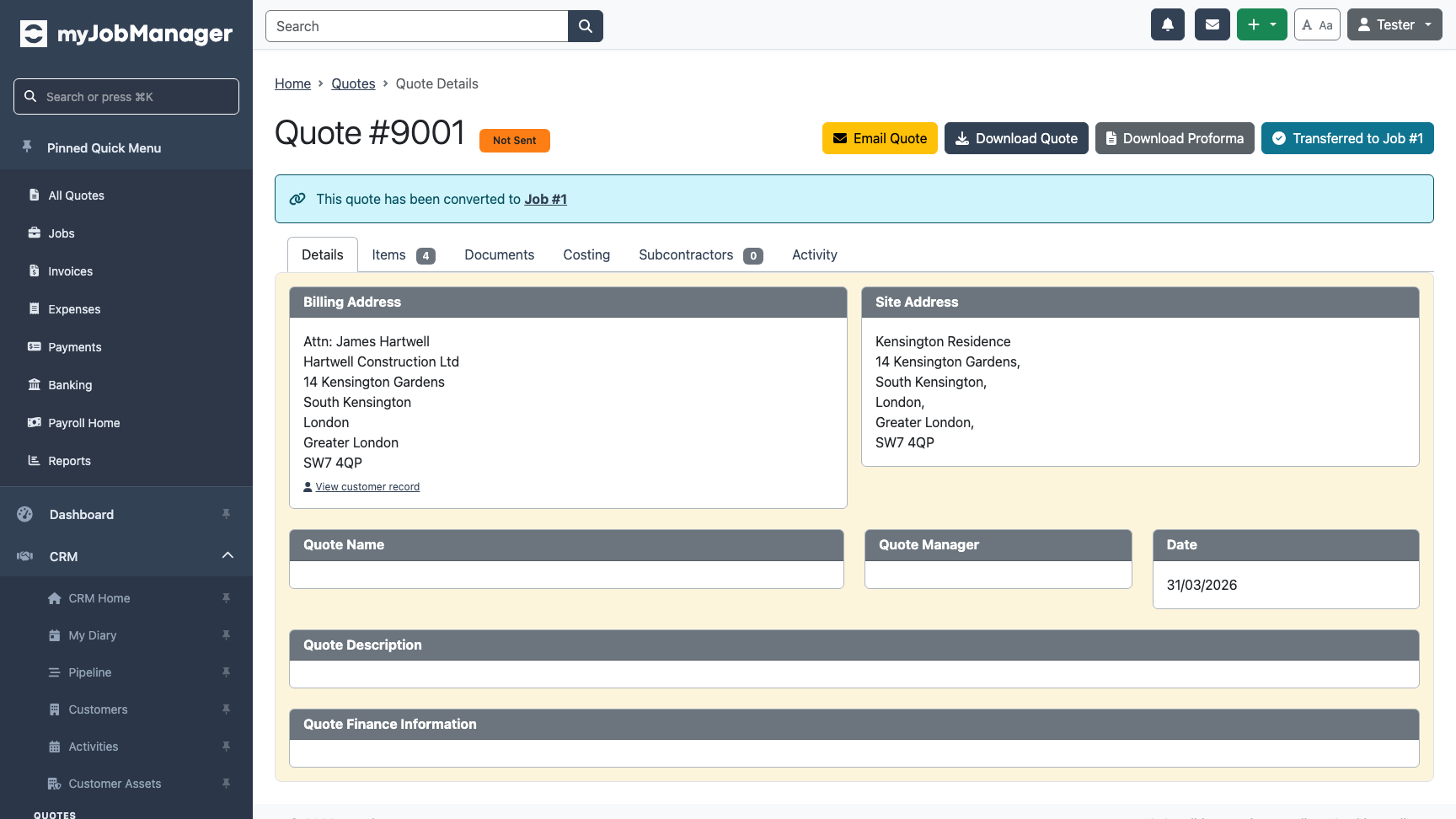
Quote Shows Transferred Status
Going back to the original quote, it now shows a "Transferred" status with a link to the job. This provides a clear audit trail.